Instructions for submitting a Get a Quote webform
Quote requests are for account customers only. We do not accept cash sales or one-off freight bookings.
Enter the requested information into the into the following fields, noting that all fields are mandatory other than those indicated as non-mandatory:
- Account Number: validation of account details upon submission of the webform
- Company Details: Company Name
- From/To:
- Pick Up From (suburb/town)
- Deliver to (suburb/location)
- Freight Item 1 Details:
- Carton
- Pallet
- Skid
- Drums
- Jiffy Bag
- Quantity
- Weight (kg)
- Length L (cm), Width W (cm) and Height H(cm)
- Extra Items: Where quantity is greater than 1, repeat for up to 4 items as per above.
- If more than four items are included, please provide sufficient details for the additional items to enable quoting, consistent with the itemised list above.
- Describe Freight: Description for additional information* Only mandatory when Y to Dangerous Goods selected
- Are these Dangerous Goods?
- Yes
- No
Dangerous Goods (DG) are substances and articles which, because of their chemical or physical properties, pose hazards requiring special controls for their safe transport and storage in South Australia. If you selected Yes for DG, please include the applicable DG Classes in the 'Describe freight' section above. For a quote to be prepared correctly, Dangerous Goods being transported must be declared and relevant paperwork provided for transport.
- Once all fields have been completed click on the NEXT button to go to Page 2.
On page 2 you enter your contact information into the fields provided, noting that all fields are mandatory:
- Your Information:
- Name
- Phone
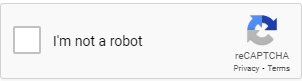
- To proceed, please click on the square next to the ‘I’m not a robot’ verification as depicted in the image below.
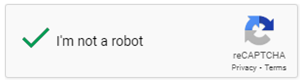
- Successful verification will show with a ‘green tick’ as shown below
Note that the first time you use reCHAPTCHA on your browser you may be asked to select from certain images for verification, however subsequent verifications will only require a click on the square next to the ‘I’m not a robot’.
- Your Information:
- Once all fields have been completed click on the SUBMIT button to go to complete the quote submission process.
- If an error message appears this indicates that a field has been left blank, correct this on Page 2 or select GO BACK if the blank field is on Page 1. Note all other field entries are retained if you must do this. Correct the error and click on the SUBMIT button again.
- Successful Quote Request submission will show on screen as
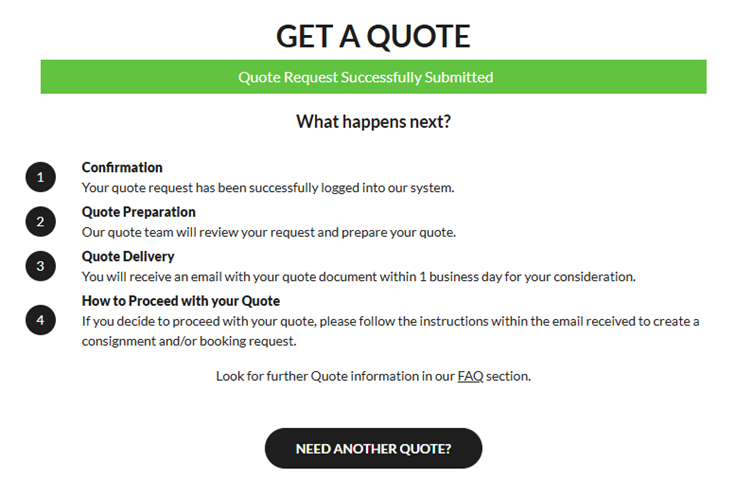
- Quote Request submission complete and details emailed to the specified email address.
Return to FAQ page